Use Test Pad
Test Pad is the step-by-step runner for one TestExecution. On Manual runs you record overall status and per-step actuals on that run’s snapshot. You do not edit the TestCase design here.
Automated runs are view-only in Pad — CI owns the result. Testing tool will not mark steps passed or failed for you.
Open Test Pad
- Start or open a run from Test execution (Create test runs) or from a TestCase (Create test run).
- Open the TestExecution issue, or open Pad from the cycle (Test pad, View test pad, or Run selected tests).
- Confirm the Manual / Automated lozenge. Automated Pad stays view-only.
- On Manual runs: set overall run status (for example Passed, Failed, Blocked, Skipped).
- On Manual runs: for each step, set status and actual result (attachments on actuals when the UI offers them).
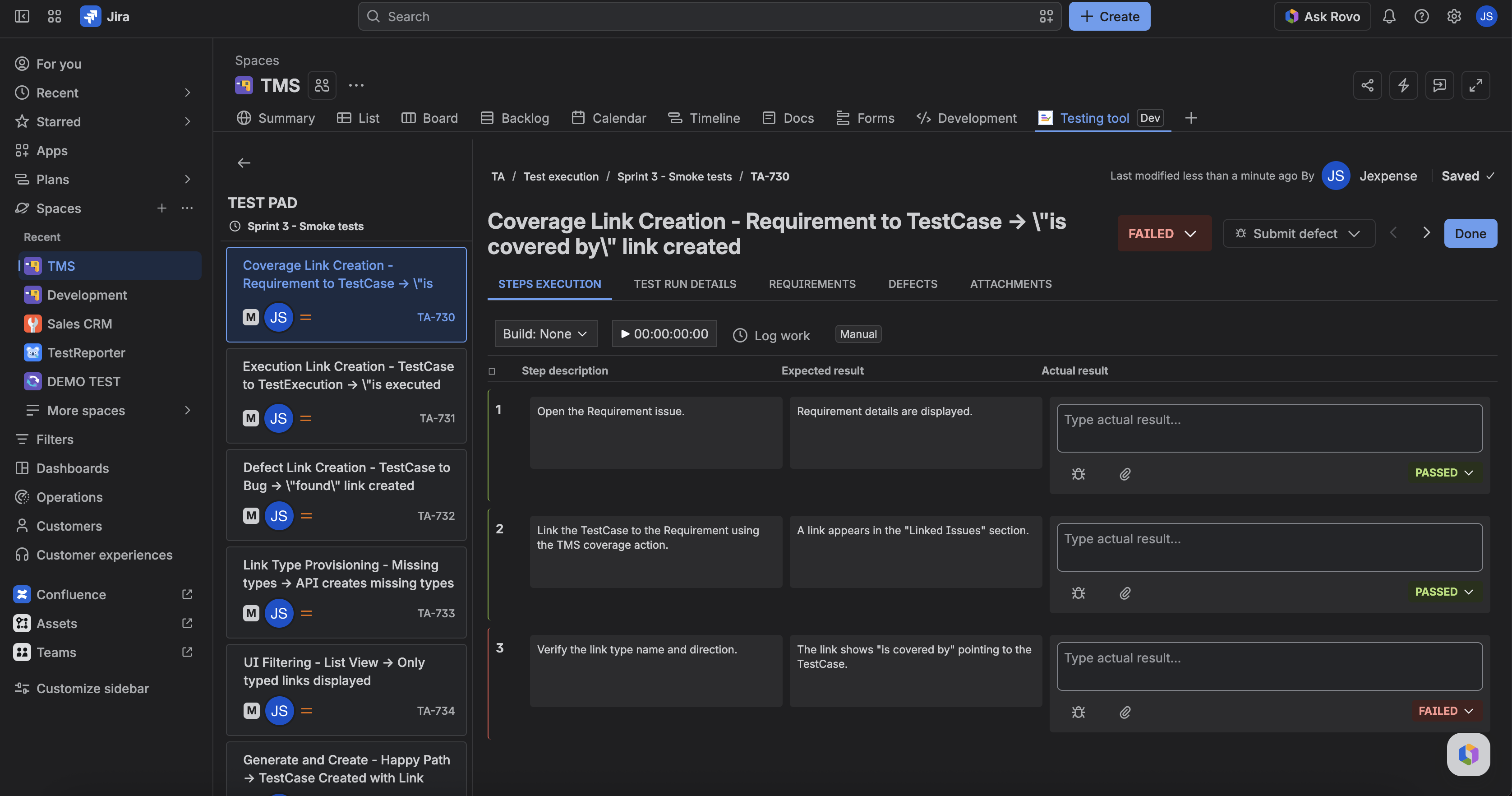
Pad tabs include Steps execution, Test run details, Requirements, Defects, and Attachments. Writes go only to that TestExecution. Callers must target an explicit TE key or (TestCase + launch). The app will not remap to a random TE for the same case.
What stays on the TestCase
Preconditions, expected results, and step text you change in Test design stay on the TestCase. They apply to the next new launch, not to an in-progress snapshot.
Defects and time
From Pad you can link defects (Bug issues) and log work when those controls are shown (Manual). Linked defects also appear on the TestCase panel Defects list.
FAQ
I edited a step in Test design mid-run. Why is Pad unchanged?
This launch already cloned the old design. Finish this TE, then start a new launch.
Can I use Pad on the TestCase issue?
The TestCase panel is design, defects, and a runs list. Open the TestExecution (or Pad from the cycle) to record actuals.
Why is Pad locked?
The TestExecution is Automated. Status and actuals come from CI ingest. Use the CI/CD builds tab on the issue for history.