Make a project TMS-ready
A project is TMS-ready when it has four Jira issue types named exactly Requirement, TestCase, TestExecution, and Bug, and the site has three issue link types named Coverage, Execution, and Found. Until those exist, Testing tool shows onboarding and the agent cannot create TestCases.
Issue type names are case-sensitive. Testcase or Test Case will show as Missing.
What you will see
Open the project Testing tool page. If setup is incomplete, onboarding titled Team managed configuration lists each work type (Requirement, TestCase, TestExecution, Bug) as ready or Missing. Link types are not rows in that list — they are called out in the footer, and Launch stays disabled until both work types and link types are ready.
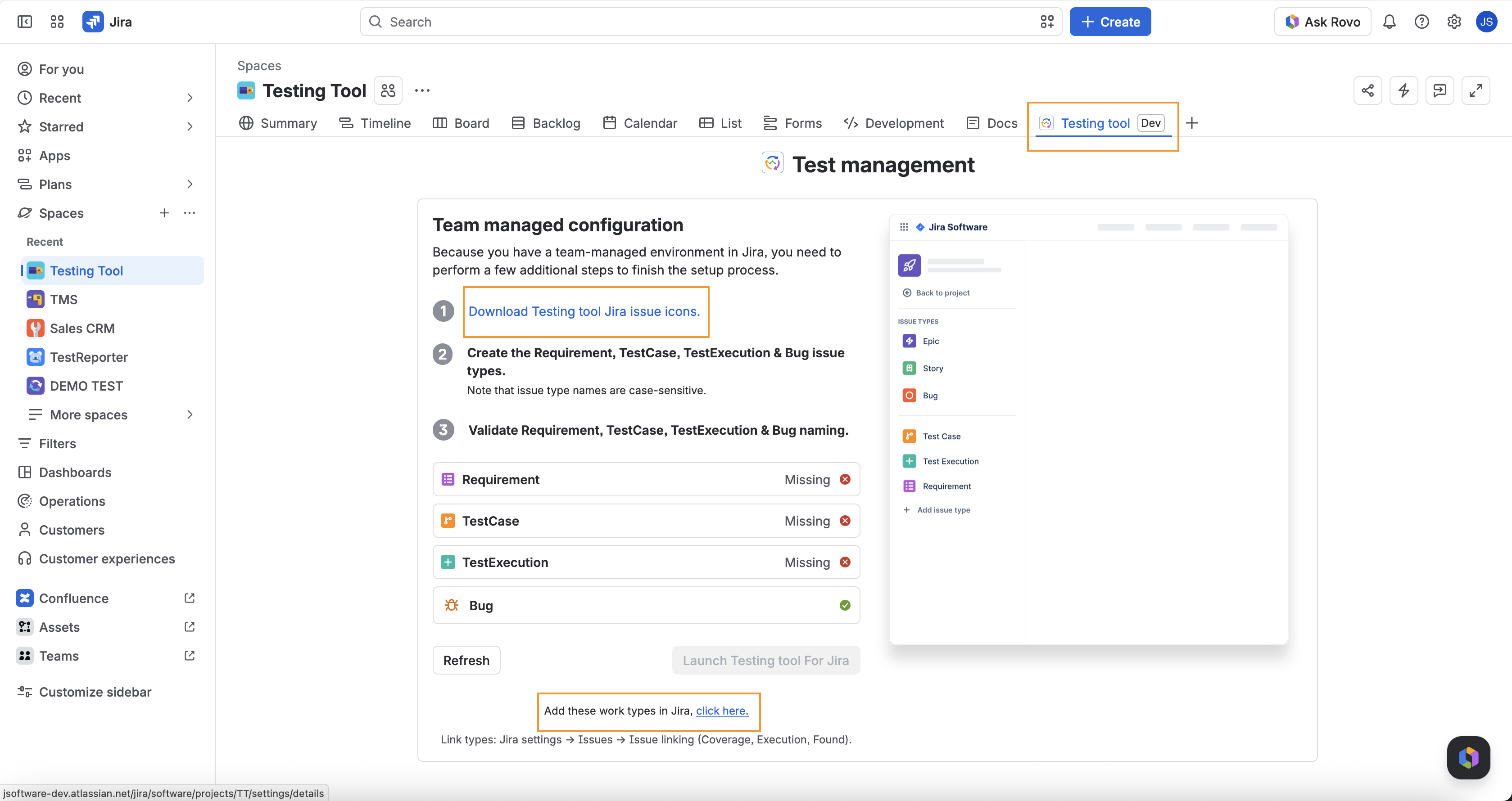
You need permission to add issue types in that project (project admin, or a Jira admin who can edit the issue type scheme). Creating missing link types on Refresh needs site configuration permission (manage:jira-configuration).
Steps
- Open Testing tool for the project.
- Click Download Testing tool Jira issue icons if you want the official icons when you create the types.
- Open project settings → Work types (use Add these work types in Jira, click here at the bottom of onboarding).
- Choose + Add work type and create each missing type with these exact names:
- Requirement
- TestCase
- TestExecution
- Bug
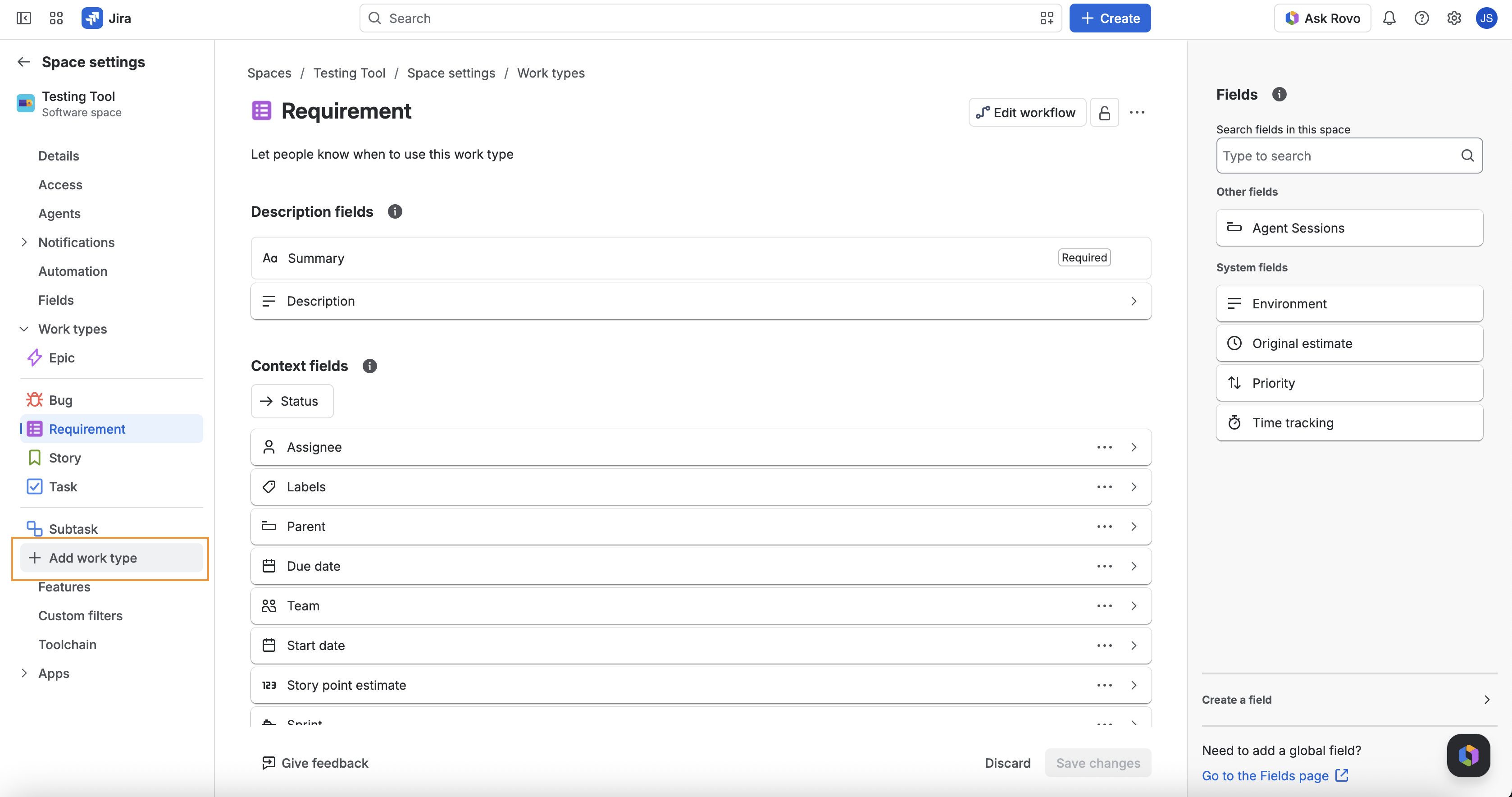
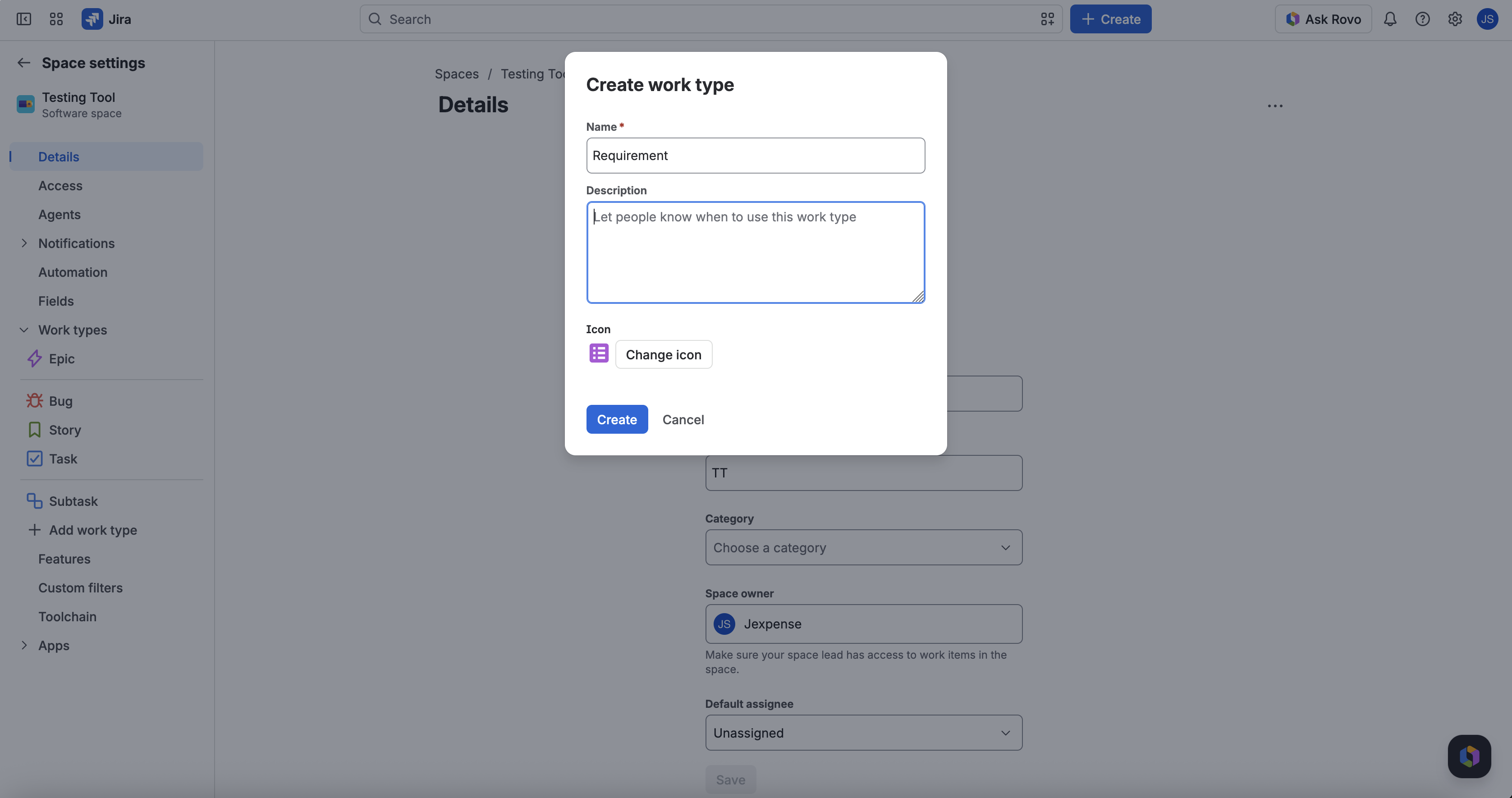
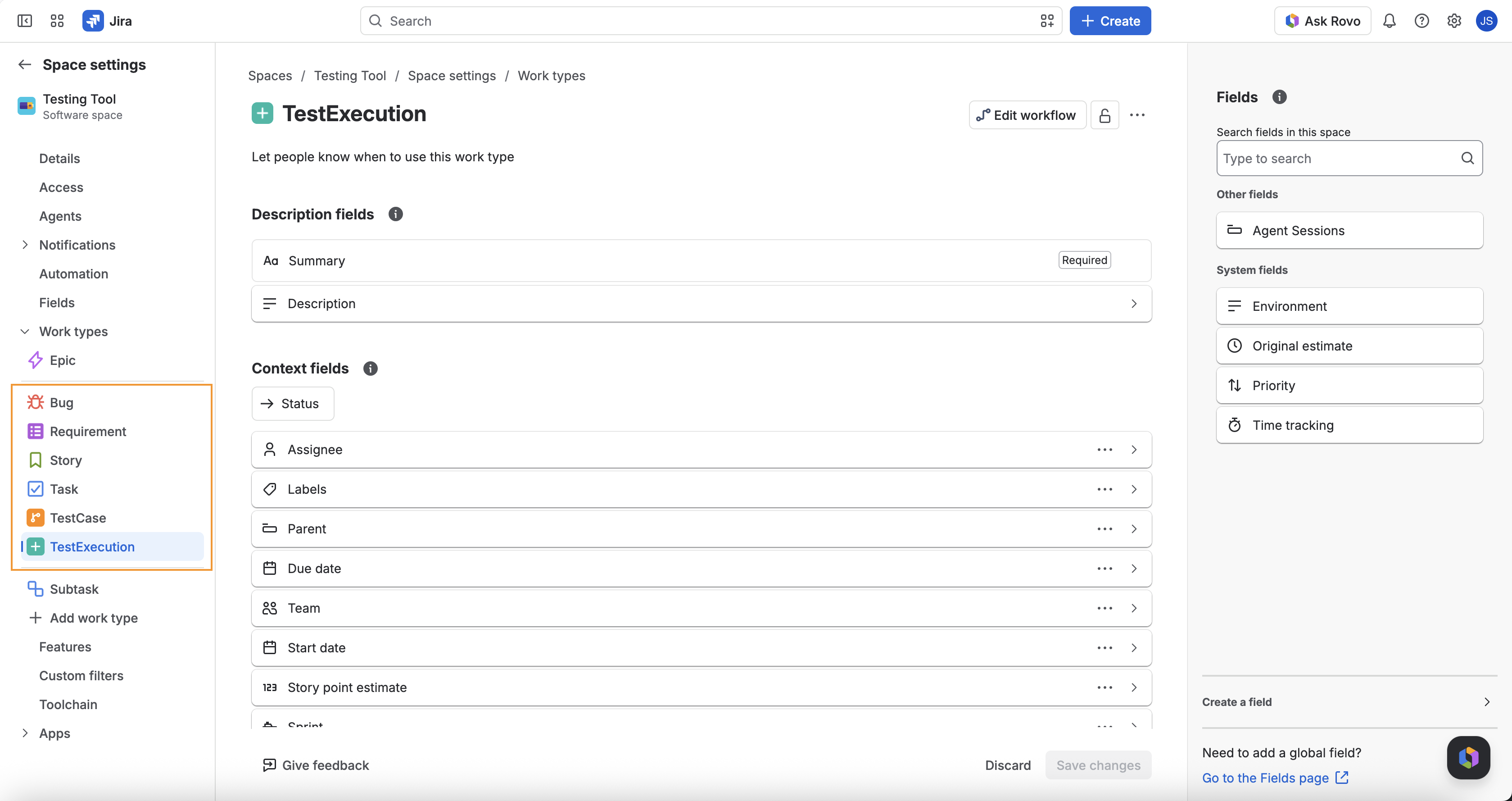
- Add them to this project (team-managed: create in the project; company-managed: add them to the project’s issue type scheme). When all four exist in the project, Work types looks like this:
- Confirm site link types Coverage, Execution, and Found (Jira settings → Issues → Issue linking), or click Refresh so the app can create any that are missing.
- Return to Testing tool and click Refresh.
- When every work-type row shows ready (check) and Launch Testing tool For Jira is enabled, click it.
Link types are configured under Issue linking. Where the app can provision or attach the named types for you, use that in-app action, then Refresh. You do not need a full browser reload if Refresh succeeds.
Link type phrases
| Name | Outward | Inward |
|---|---|---|
| Coverage | is covered by | covers |
| Execution | is executed as | executes |
| Found | found | was found by |
After it is ready
- Requirements, Test design, and Test execution are usable.
- Testing tool can create TestCases in this project (you still confirm each write in chat).
- If Testing tool still refuses create, you may lack Create issues on the project — see Permissions, credits, and limits.
FAQ
Why does Refresh still say Missing?
The type name does not match exactly, the type is not on this project’s scheme, or you refreshed before Jira finished saving. Check the name, then Refresh again.
Why is Launch still disabled when every work type shows ready?
A required link type (Coverage, Execution, or Found) is still missing on the site, or Refresh could not create it (needs manage:jira-configuration). Fix Issue linking, then Refresh again.
Can I reuse an existing Bug type?
Yes, if it is named exactly Bug and it is available in this project.
Do I do this on every project?
Issue types are per project. Link types are site-wide — once Coverage / Execution / Found exist on the site, every project can use them.
Will Testing tool set this up for me?
No. It will fail closed and point you at Apps / this setup. An admin must add the work types. Link types may be created automatically on Refresh when the app has configuration permission.