Install and open Testing tool
A Jira admin installs this Forge app on the site. After install, each project opens Testing tool from the project navigation — that hub is where you design cases, run cycles, and open the Rovo agent.
Install on the site
- A Jira admin installs the app from the Atlassian Marketplace listing (or from a private distribution link your vendor sent).
- Approve the requested Jira permissions when prompted.
- Confirm the app appears under Apps / Manage apps on the site.
You do not install the agent separately. The Rovo agent ships with the same app. The site must also have Rovo enabled, or Ask CTAs stay hidden. See Permissions, credits, and limits.
Open Testing tool in a project
- Open a Jira software project where you want test management.
- If Testing tool is not already in the project navigation, open the + menu at the end of the nav tabs, choose Testing tool under Apps, then Add to navigation.
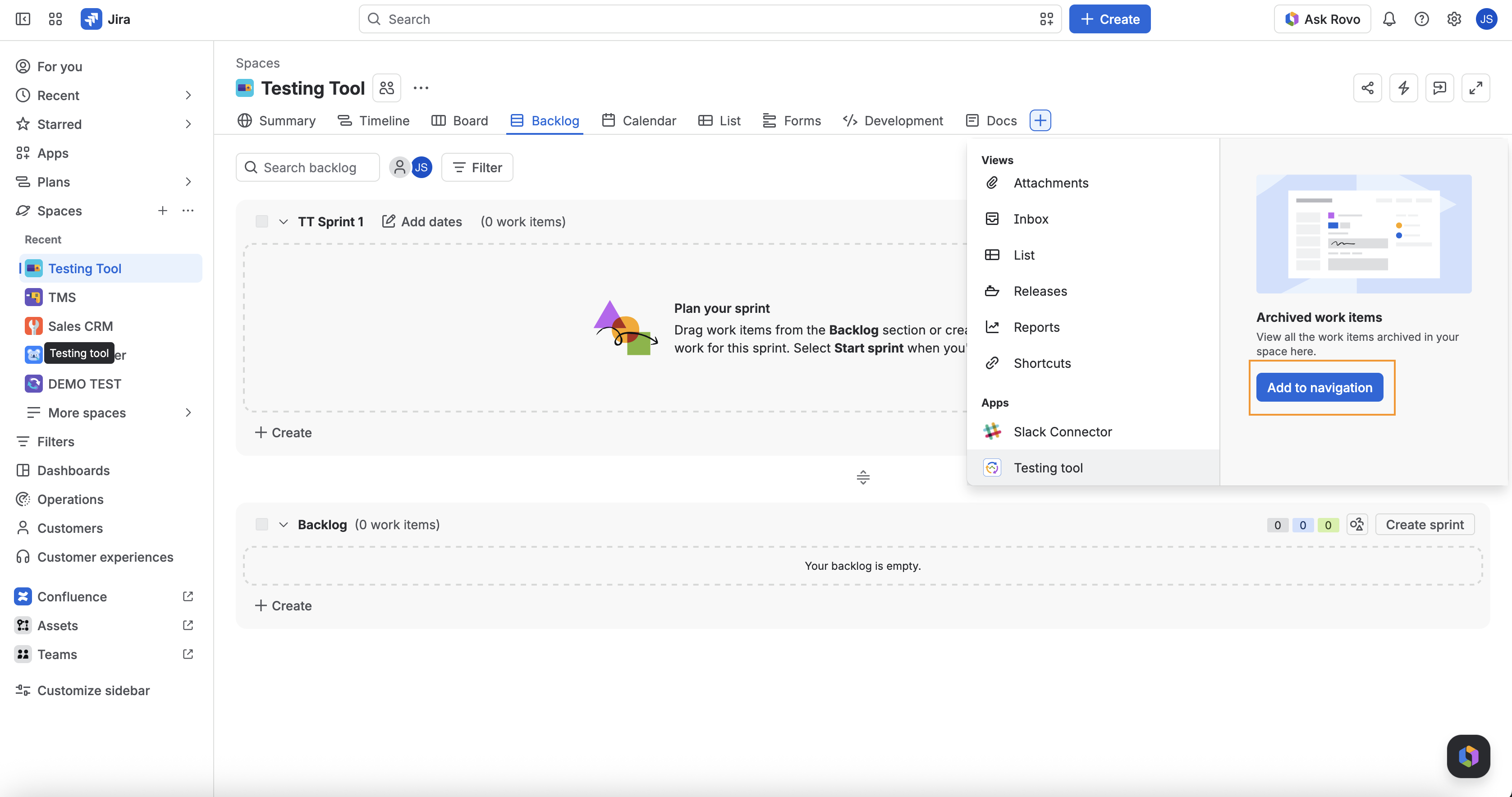
- In the project navigation, open Testing tool (the app project page).
- If issue types are not ready, you will see onboarding instead of Requirements / Test design. Continue with Make a project TMS-ready.
- When types are ready, click Launch Testing tool For Jira (or you land directly in the hub).
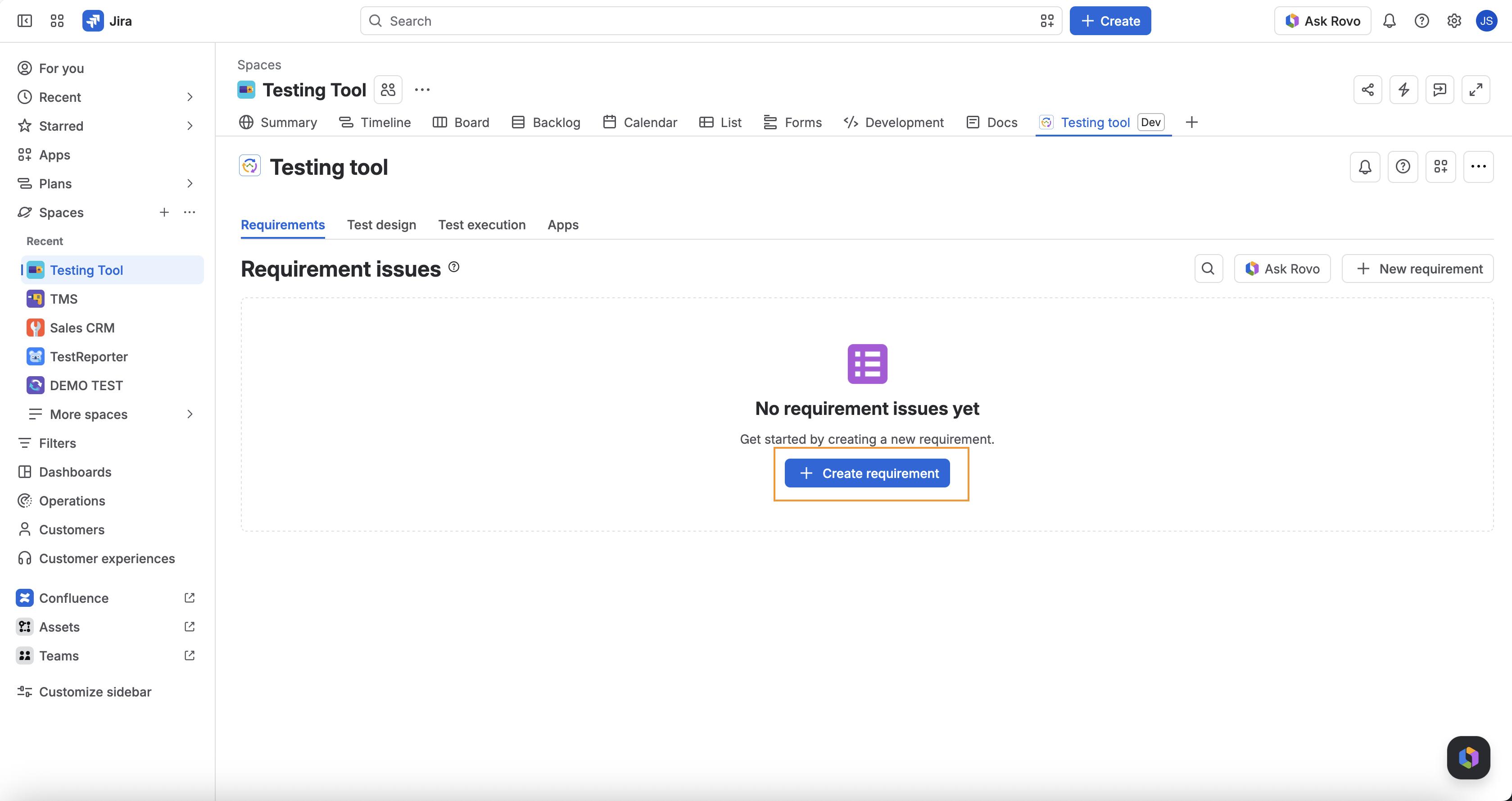
From the hub you can open Requirements, Test design, Test execution, and Apps (catalog; CI setup from an app’s Setup action). The toolbar also has a CI push bell, background job progress, Help (opens the agent when Rovo is on), and More for Excel import/export.
Open the agent after install
Install alone does not open the agent. Use Find and open Testing tool: Rovo Chat → Testing Agent, Help on the Testing tool toolbar, or the Ask CTAs (Ask Rovo on Requirements and Test design, Ask Testing tool on Cycle traceability, Fill steps with Rovo on a Manual TestCase).
FAQ
I installed the app but I do not see Testing tool.
It may not be pinned on this project yet. Use + → Apps → Testing tool → Add to navigation. If it is not in that menu, confirm the app is installed for Jira on this site, then reopen the project.
I see Testing tool but no Ask CTA.
Rovo is off on the site, or you are on a screen without a CTA. Use Rovo Chat and pick Testing Agent, or the Help icon when it is shown.
Does Apps → Rovo Active install the agent?
No. That Project Integration toggle is a per-project preference. The agent is already part of the installed app.