See coverage on a story or epic
The Cycle traceability panel appears on Jira issues that are not a TestCase and not a TestExecution — stories, epics, and other work items. You link test cycles to the issue and see coverage for those cycles’ TestCase members.
Coverage comes from linked cycles only (members + latest run status). It does not read TestCase design steps or Test Pad actuals as the coverage model.
On the same issue types you also get a QA Checklist panel: a two-level list of the TestCases linked to this issue (any link type), grouped by Test Design suite, with an overall progress bar and an executed/total count above the add trigger once the checklist has items. Each suite header shows the suite name, an executed/total badge and a collapse control (suites start expanded — collapse a suite to hide its TestCases, matching rows open themselves again when filters are applied); under it, each TestCase row has a checkbox plus its summary and the latest run status (the summary opens the TestCase). Click a row’s checkbox to pick its result from a small popup that opens right under it — Passed / Failed for a TestCase without a result, Unexecuted to put an existing one back — and the pick is written straight away (no dialog to confirm) — while the write runs and until the list has read the new result back, that row’s checkbox is replaced by a small Saving result… spinner. A tick updates the status of that TestCase’s latest TestExecution in Jira, so the checklist, the TestExecution and the plan metrics stay in sync. A TestCase whose latest run has no TestExecution (it never ran, or its latest run came from a CI launch) picks the result first: the app’s Create test run dialog opens next — the run is created for that TestCase (and its suite) straight from the checklist, the picked result is written to that new run, and the list refreshes once it is created. Use the filter icon next to the progress bar to open the Filter checklist popup — Status chips (Unexecuted / Passed / Failed, pick several at once), Executed by (a searchable picker showing each project user with their avatar — type a name to filter) and Suite; Apply filters commits them (the panel re-reads the checklist from the server with those filters), Reset clears the draft, and the trigger badge shows how many filter groups are on; the progress bar counts the rows currently listed (a filter combination that hides every row reads 0/0 and the panel then shows No checklist items match these filters with a Reset filters button, which clears the filters and brings the whole list back). TestCases without a suite appear directly below the last group. When that list is empty the panel shows a No checklist items yet state — choose Add a checklist item to open the inline add form. It has two sources: Choose test case (search the project, pick a result, then press Add item — this creates the real Jira issue link with the picked link type, so the row appears in the list after the panel re-reads the issue’s links; TestCases that are already in the checklist are hidden from the results) or Create test case (fill in the title, a suite — required, marked with a red *, and + Create & add to checklist stays disabled until one is picked; if the project has no suite yet the field becomes a Create test suite button that opens the New test suite dialog and selects what it creates — the project, pre/postconditions and steps (each step’s Action and Expected result is edited inline — click the cell, type, then Confirm), then press + Create & add to checklist — this creates a real TestCase with the project’s mapped TestCase type, saves the pre/postconditions and steps on it, links it to the chosen suite and then links it to this issue, so it shows up in the checklist with its own key). On issues that are not a Requirement the form also shows a Link type picker (the site’s link types, defaulting to the typed Coverage outward phrase); a Requirement always takes the Coverage link.
Open the panel
- Open a story, epic, or other non-TestCase / non-TestExecution issue.
- Find the Cycle traceability panel (full view and issue modal). It loads on its own.
- Click Link test cycles and choose one or more cycles. Links persist.
- Unlink a cycle (or linked project group) when it should no longer count.
With links, you see at least TOTAL TEST RUNS, EXECUTED, and UNEXECUTED (plus the status bar the panel shows). With no links or no members: empty or zero — not an error.
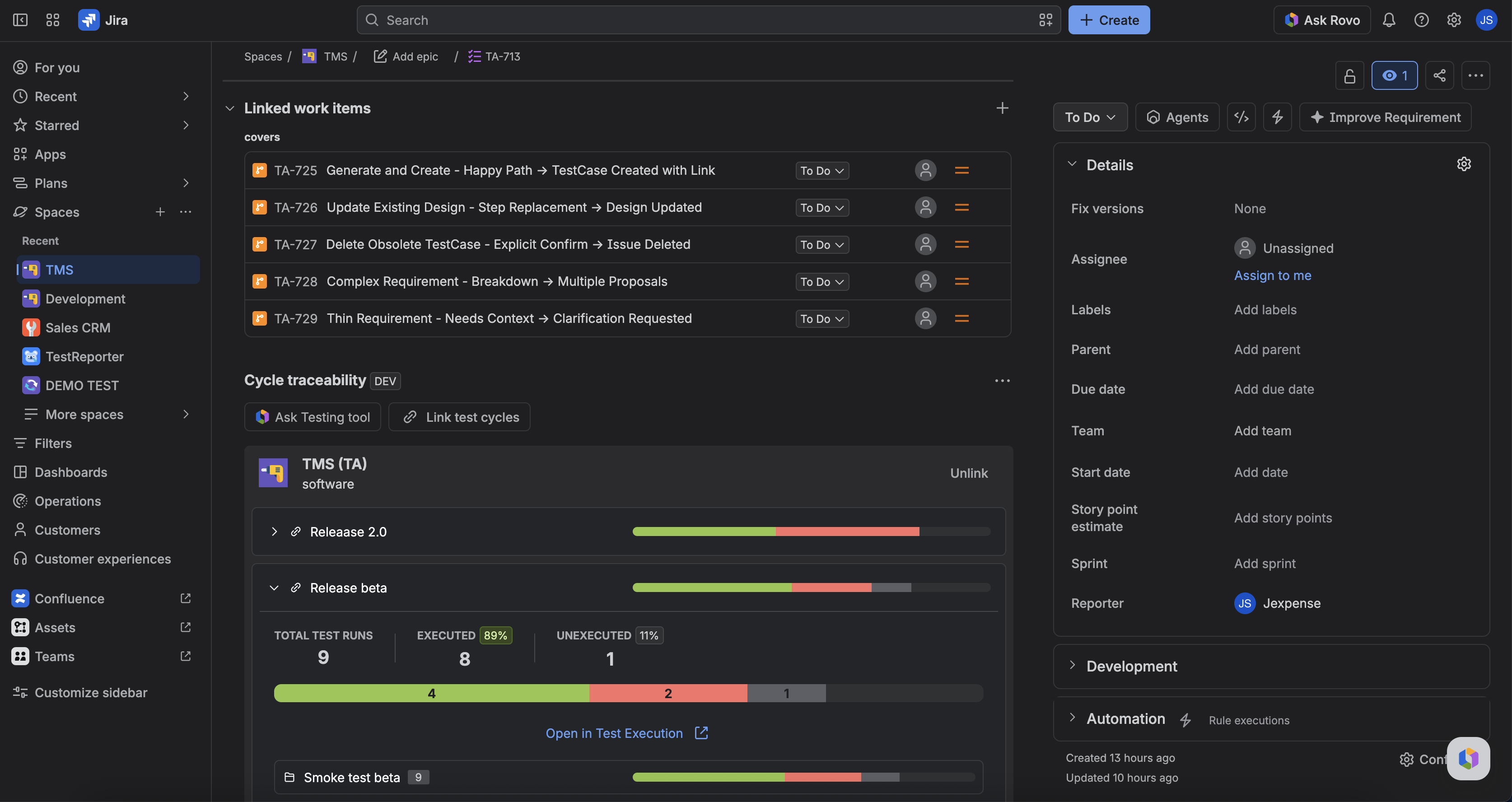
Ask Testing tool from a story
Use Ask Testing tool on this panel (hidden if Rovo is off) to draft TestCases from the issue. Creating cases is not the same as linking a cycle. After cases exist, add them to a cycle, then link that cycle here for coverage.
FAQ
Why is this panel missing on a TestCase?
TestCases use the Test design panel. TestExecutions use the Test execution panel.
I linked a Requirement’s TestCases. Why is coverage still zero?
This panel counts cycles, not requirement links. Create or pick a test cycle that contains those cases, then link that cycle.